How to Fix a 403 Forbidden Error on Your Startup Website
Few things spike a founder's heart rate like loading their own website and seeing "403 Forbidden" staring back. The good news is that it is one of the most common and most fixable errors out there, and you do not need to be a developer to handle most causes. This guide explains what a 403 actually means, why it tends to hit startup sites, and the practical steps to fix it yourself before calling for help.
So What Does 403 Forbidden Actually Mean?
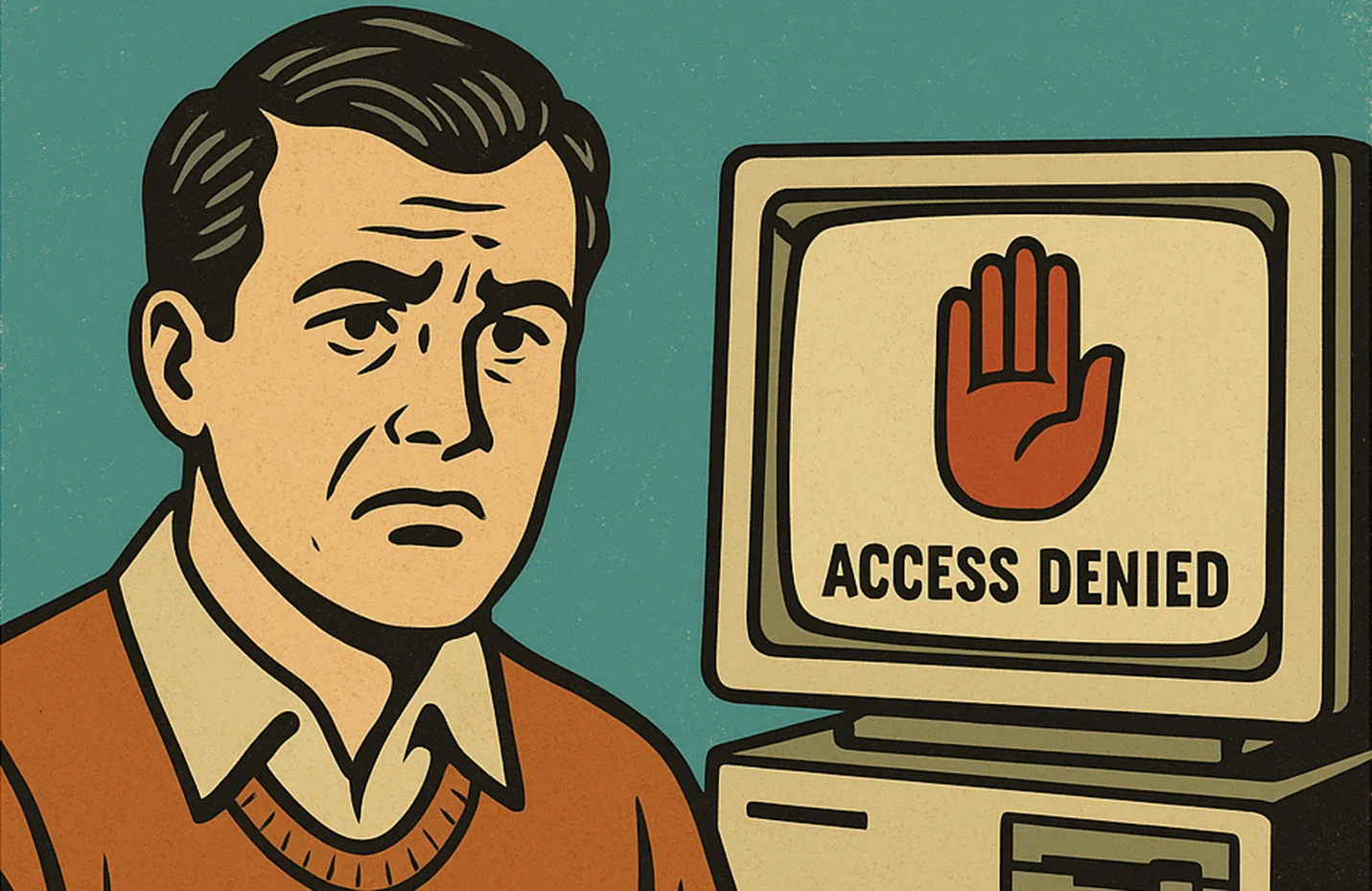
Put simply, a 403 Forbidden error means you are not allowed to see this page or resource. Your browser tried to access a page, file, or folder on your website, and the server responded with a firm "nope, not for you." It is different from a 404, which means the page does not exist. A 403 means the page may well exist, but the server is refusing to serve it.
This usually happens for one of three reasons: permissions are set wrong, a rule somewhere is blocking access (often in the .htaccess file), or the file is missing or sitting in the wrong place. The reassuring part is that none of these require deep technical knowledge to investigate, and we will walk through what you can check and fix yourself.
Why Does This Happen on a Startup Website?
Ah, the joys of launching quickly. Whether you are running WordPress, Shopify, or a custom-built MVP from a development agency, startup sites are especially prone to 403 errors precisely because they are assembled fast. Permissions get set hastily during setup, a plugin or security rule blocks something it should not, a migration leaves files in the wrong place, or a server configuration tweak has an unintended side effect.
In other words, the 403 is often a symptom of the move-fast energy that gets a startup live in the first place. It is not a sign that something is deeply broken, just that a setting somewhere needs correcting. That is genuinely good news, because it means the fix is usually quick once you know where to look.
How to Fix 403 Forbidden (Even If You're Not a Dev)
Check File and Folder Permissions
The most common cause is incorrect permissions. Every file and folder on your server has settings that control who can read, write, and execute it. If those are too restrictive, the server refuses access and throws a 403. As a general rule, folders should be set to 755 and files to 644. Your hosting control panel or an FTP client lets you view and correct these without touching code. This single check resolves a large share of 403 errors.
Look Into the .htaccess File
On many servers, a hidden file called .htaccess controls access rules. A misconfigured or corrupted .htaccess is a frequent 403 culprit, especially on WordPress. A safe diagnostic step is to rename it temporarily and reload your site. If the error vanishes, the file was the problem, and you can regenerate a fresh one. Always keep a backup of the original before changing anything, so you can restore it if needed.
Check for Missing Index Files
Servers expect a default file, usually index.html or index.php, to serve when someone visits a folder. If that file is missing, the server may respond with a 403 instead of showing the directory. Confirm that your main folders contain the expected index file in the right place. A missing or misnamed index file after a migration or deploy is a classic, easily fixed cause.
Try Clearing the Cache
Sometimes the 403 is a ghost. The underlying problem was already fixed, but a cached version of the error is still being served, either by your browser, a caching plugin, or a CDN like Cloudflare. Clear your browser cache, purge any site or CDN cache, and reload. It is a thirty-second check that occasionally saves an hour of chasing a problem that no longer exists.
Ask Your Hosting Support
If you have checked permissions, .htaccess, index files, and caching and the 403 persists, your hosting provider's support team is the next stop. Server-level configurations, firewall rules, or security settings on their end can cause 403 errors that you cannot see or change yourself. A quick support ticket describing what you have already tried often gets a fast answer, since they can see things you cannot.
When to Call in a Web Development Agency
Most 403 errors are simple, but some are symptoms of deeper trouble, a misconfigured server, a security issue, a tangled setup left by a rushed launch. If the error keeps returning, affects critical pages, or you simply do not want to gamble with your live site, it is worth bringing in professionals. A development agency can diagnose the root cause rather than the surface symptom, and fix it in a way that does not quietly reappear next week.
This is especially worth it if the 403 is intermittent or tied to specific actions, which often points to something more structural than a permissions slip. Spending a little to get it diagnosed correctly is cheaper than repeatedly patching a problem you do not fully understand.
How to Prevent 403 Errors in the First Place
Fixing a 403 is good, but never seeing one is better. Most 403 errors trace back to the rushed, ad-hoc setup that startup sites are built on, so a little discipline up front prevents the majority of them. Set file and folder permissions correctly from the start rather than loosening or tightening them in a panic later. Keep your .htaccess or server configuration clean and documented, so nobody adds a blocking rule by accident.
Beyond configuration, the usual good habits help: keep software and plugins updated, since outdated security tools sometimes block legitimate traffic; test thoroughly after any migration or deploy, which is when files end up in the wrong place; and keep backups so you can roll back a bad change instantly. A site built and maintained with care simply throws far fewer of these errors, which is one more quiet argument for getting the foundation right rather than patching problems as they appear.
403 vs Other Common Errors
It helps to know how a 403 differs from its neighbors, because the fix depends on the cause. A 404 means the page genuinely does not exist, usually a broken link or a moved file. A 500 is a server-side error where something in the code or configuration crashed. A 403, by contrast, means the resource exists and the server is deliberately refusing access, which points you toward permissions and access rules rather than missing files or broken code.
Recognizing which error you are facing saves time, because each sends you to a different place. Chasing a 403 as though it were a 404 means looking for a missing file that is actually sitting right there, just locked. Knowing the distinction turns a confusing problem into a targeted one, which is half the battle with any website error.
Summary: 403 Errors Are Fixable and Avoidable
A 403 Forbidden error feels alarming but is rarely serious. In most cases it comes down to permissions, a stray .htaccess rule, a missing index file, or a cached ghost, all of which you can check yourself in minutes. Work through the steps above in order, lean on your hosting support if needed, and call in professionals if it persists or feels structural. Better still, a well-built site with sensible permissions and clean configuration rarely throws 403s in the first place, which is one more quiet argument for doing the foundation right.